
Fabric Capacity Sizing: How to Pick F2 to F64 Without Overpaying
A guide to choosing the right Microsoft Fabric capacity (F2–F64) based on CU usage, workload demand, performance, and cost.
24
Nov
Fabric Capacity Sizing: How to Pick F2 to F64 Without Overpaying
Published 24 Nov 2026 Updated 24 Nov 2026 Written and reviewed by Anshul Goyal
Table of Contents
Choosing the right Microsoft Fabric capacity is not about buying the largest SKU your budget allows. The better approach is to understand how many Capacity Units (CUs) your workloads actually consume, measure concurrency, monitor throttling, and then select the smallest SKU that can handle normal demand with reasonable headroom.
Microsoft Fabric capacities from F2 to F64 provide 2 to 64 CUs, respectively. The correct size depends on workloads such as Power BI, Data Factory, Data Engineering, Data Warehouse, notebooks, semantic models, and Real-Time Intelligence—not simply the number of users.
A company with hundreds of light Power BI users may need less compute than a small data engineering team running several large Spark notebooks and pipelines simultaneously.
Quick Answer
For Microsoft Fabric capacity sizing, start small, measure real CU usage, and scale only when sustained utilisation or throttling justifies it. F2 and F4 work well for testing and light workloads; F8–F16 suit growing teams; F32 supports heavier mixed workloads, while F64 is designed for substantially higher concurrency and also changes Power BI viewer licensing possibilities.
What Is Microsoft Fabric Capacity?
Microsoft Fabric capacity is a dedicated pool of compute resources used by Fabric workloads such as Power BI, Data Factory, Warehouse, Lakehouse, notebooks, and other analytics services.
A Capacity Unit, or CU, represents a unit of compute available to Microsoft Fabric workloads. Each Fabric F SKU includes a fixed number of CUs.
Fabric workloads assigned to the same capacity share those resources.
For example, an F8 capacity provides 8 CUs, while F32 provides 32 CUs. Microsoft evaluates consumption in 30-second timepoints when analysing capacity usage.
That means sizing is fundamentally a question of:
How much compute are your workloads consuming over time, and how much of that demand overlaps?
F2 to F64 Fabric Capacity Comparison
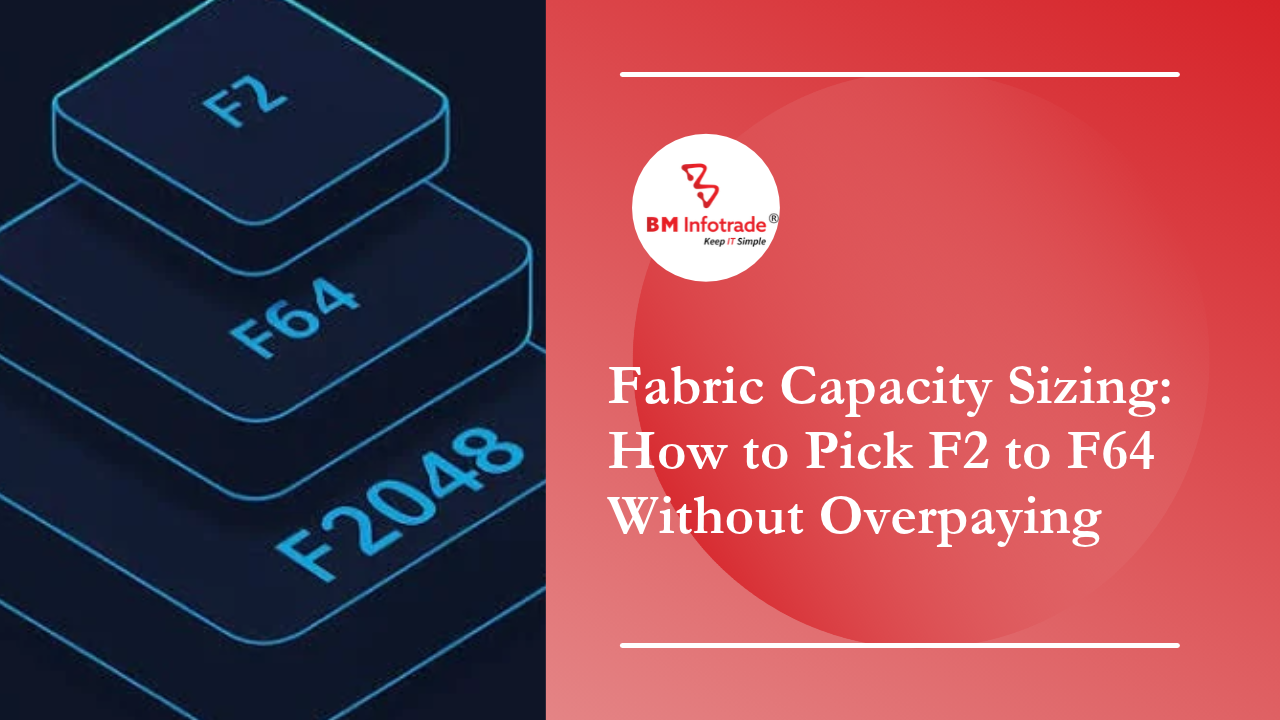
Each step from F2 to F64 approximately doubles the available Capacity Units.
| Fabric SKU | Capacity Units | CU Availability per 30 Seconds | Typical Starting Use Case |
| F2 | 2 | 60 CU-seconds | Development, testing, very light workloads |
| F4 | 4 | 120 CU-seconds | Small analytics teams |
| F8 | 8 | 240 CU-seconds | Light production workloads |
| F16 | 16 | 480 CU-seconds | Growing production environments |
| F32 | 32 | 960 CU-seconds | Larger mixed workloads |
| F64 | 64 | 1,920 CU-seconds | High concurrency, enterprise BI and Fabric workloads |
Microsoft's current sizing documentation confirms these CU allocations.
However, these use-case descriptions should be treated as practical starting points rather than hard limits.
Two companies using F16 may experience completely different results depending on query efficiency, refresh schedules, notebook activity, data volumes, pipeline concurrency, and user behaviour.
What Actually Determines Fabric Capacity Size?
Fabric capacity requirements are driven primarily by compute consumption and concurrency, not company size or user count.
Several factors matter.
1. Workload Type
Different Fabric experiences consume capacity differently.
Common workloads include:
-
Power BI semantic models
-
DAX queries
-
Dataset refreshes
-
Data Factory pipelines
-
Fabric Data Warehouse
-
SQL analytics endpoints
-
Spark notebooks
-
Lakehouses
-
Data engineering jobs
-
Real-Time Intelligence
-
Copilot interactions
A company mostly running Power BI dashboards will behave differently from one performing large-scale Spark transformations.
2. Concurrent Operations
Concurrency is often more important than total daily activity.
Ten expensive jobs running together may create more capacity pressure than 100 jobs spread throughout the day.
3. Interactive vs Background Activity
Fabric distinguishes between interactive and background operations.
Interactive activity can include user-driven report queries, while background activity includes operations such as many refresh and processing workloads.
Fabric treats these differently when smoothing capacity consumption.
4. Workload Efficiency
Poorly optimised operations can consume significantly more CUs.
Examples include:
-
Inefficient DAX
-
Oversized semantic models
-
Poor Spark code
-
Excessive notebook runs
-
Unnecessary refresh frequency
-
Poor warehouse query design
-
Uncontrolled pipeline concurrency
Microsoft specifically recommends optimising expensive workloads before assuming that a larger SKU is required.
Step-by-Step: How to Size Microsoft Fabric Capacity
The most reliable sizing method is to run representative workloads, collect Capacity Metrics data, identify sustained pressure, and scale gradually.
Step 1: Estimate Your Initial Workload
List the Fabric components you expect to run.
For example:
-
20 Power BI semantic models
-
200 report viewers
-
15 scheduled refreshes
-
10 pipelines
-
5 notebooks
-
2 warehouses
Also document expected peak usage windows.
Do several pipelines, refreshes, and notebooks run at 8:00 AM?
If yes, concurrency may matter more than average daily usage.
Step 2: Start With the Smallest Practical Capacity
Microsoft recommends starting small and increasing capacity as required. Trial capacities or pay-as-you-go F SKUs can be used to establish actual workload requirements before making a longer-term commitment.
Instead of immediately buying F32 because you expect growth, you might begin with F8 or F16.
Then measure.
Step 3: Run Representative Production Workloads
Testing should reproduce real usage.
Include:
-
Peak-hour Power BI queries
-
Semantic model refreshes
-
Pipeline executions
-
Notebook workloads
-
Warehouse queries
-
Concurrent users
-
Scheduled background jobs
Running one isolated report is not a realistic capacity test.
Step 4: Install and Use Fabric Capacity Metrics
The Fabric Capacity Metrics app is one of the most important tools for capacity sizing.
It allows administrators to analyse recent consumption, workloads, operations, utilisation, and throttling.
The Compute page can help identify:
-
Capacity utilization
-
Peak activity
-
Background consumption
-
Interactive consumption
-
Expensive operations
-
Throttling events
-
Workloads responsible for capacity pressure
Microsoft's current Metrics documentation states that the Compute page provides consumption information covering the previous 14 days.
Step 5: Look Beyond the 100% Utilisation Line
Seeing capacity usage briefly cross 100% does not automatically mean the capacity is too small.
Microsoft Fabric supports bursting and smoothing.
This is one of the most important concepts in Fabric capacity sizing.
How Bursting and Smoothing Affect Fabric Capacity Sizing
Fabric can temporarily execute workloads above the provisioned capacity level and account for the consumption over a longer window.
Bursting
Bursting allows an operation to temporarily use more compute than the SKU normally provides.
Therefore, an F8 workload can briefly consume resources at a rate greater than its steady-state eight CUs.
Smoothing
Smoothing spreads the accounting of compute consumption across future timepoints.
Microsoft currently smooths many interactive operations over at least five minutes and potentially longer, while background operations may be smoothed across 24 hours.
This means you should generally avoid sizing capacity purely around the highest instantaneous spike.
Why This Matters
Suppose a large background operation briefly consumes substantial compute.
Without smoothing, you might conclude:
"We need to move from F16 to F32."
But if the workload completes successfully and the capacity absorbs its consumption without sustained throttling, upgrading could simply double your provisioned compute without solving a real problem.
Understand Fabric Throttling Before Scaling Up
Persistent throttling is a much stronger capacity-sizing signal than occasional utilisation spikes.
Fabric currently uses progressive throttling based on future capacity consumption.
Microsoft documents the following broad stages:
| Capacity Pressure | Fabric Behavior |
| Up to 10 minutes of future usage | Overage protection |
| More than 10 minutes | interactive operations can be delayed |
| More than 60 minutes | Interactive operations cab be rejected |
| More than 24 hours | Background operations can also be rejected |
Therefore, administrators should review the Throttling view rather than assuming that every utilisation spike requires scaling.
Which Fabric SKU Should You Choose?
When Should You Choose F2?
F2 is best suited to very small, development, proof-of-concept, or highly controlled workloads.
Consider F2 when:
-
Testing Fabric
-
Building prototypes
-
Running lightweight pipelines
-
Supporting a few developers
-
Running low-concurrency workloads
Avoid treating F2 as the default production SKU simply because it is the cheapest.
When Should You Choose F4?
F4 is suitable for small teams whose F2 workloads are beginning to experience sustained compute pressure.
Typical scenarios include:
-
Small departmental analytics
-
Limited scheduled transformations
-
Lightweight semantic models
-
A few concurrent Fabric jobs
It can also provide an inexpensive environment for workload validation.
When Should You Choose F8?
F8 is often a practical entry point for smaller production Fabric deployments with moderate but controlled activity.
It may work well for:
-
Departmental BI
-
Several data pipelines
-
Small lakehouses
-
Moderate semantic model refresh activity
-
Limited Spark usage
Monitor concurrency carefully when multiple services share the capacity.
When Should You Choose F16?
F16 gives growing Fabric environments more room for mixed production workloads and concurrent activity.
It becomes attractive when organisations combine:
-
Power BI
-
Warehouse
-
Lakehouse
-
Notebooks
within the same Fabric capacity.
At this stage, workload governance becomes increasingly important.
When Should You Choose F32?
F32 is better suited to organisations with heavier mixed workloads, larger semantic models, more users, or substantial concurrency.
Possible scenarios include:
-
Multiple business units
-
Frequent data refreshes
-
Larger warehouse workloads
-
Several engineering pipelines
-
Concurrent notebooks
-
High Power BI query volumes
However, an inefficient F16 workload does not automatically become efficient on F32.
Optimise before scaling.
When Should You Choose F64?
F64 provides 64 CUs and is an important threshold for organisations combining significant Fabric demand with broad Power BI distribution requirements.
F64 can make sense for:
-
Large enterprise BI environments
-
Heavy concurrency
-
Multiple Fabric workload types
-
Large user populations
-
Organisation-wide analytics platforms
It also has a major Power BI licensing implication.
Why F64 Is More Than Just a Bigger SKU
F64 can allow users with Fabric Free licenses to view eligible Power BI content when the content resides on qualifying capacity, and the users have the appropriate viewer role.
For capacities below F64, Power BI viewers generally require Pro, PPU, or another qualifying individual license for these sharing scenarios.
Microsoft documents F64 as the threshold where Fabric Free users with the appropriate viewer permissions can consume Power BI content hosted on the capacity.
This means the decision between F32 and F64 should not be made on compute alone.
For a large Power BI audience,organisationss should compare:
Capacity cost + user licensing cost + required performance
rather than just:
F32 cost vs F64 cost.
Benefits of Correct Fabric Capacity Sizing
Right-sizing Fabric improves cost efficiency while maintaining enough capacity for reliable analytics workloads.
Key benefits include:
-
Lower unnecessary cloud spend
-
Better workload performance
-
Reduced throttling
-
More predictable operations
-
Better budgeting
-
Easier capacity planning
-
Improved user experience
-
Better visibility into workload efficiency
The goal is not minimum capacity.
The goal is minimum capacity that reliably satisfies business requirements.
Limitations of Fabric Capacity Sizing
No static calculator can perfectly predict Fabric capacity requirements because workload behaviour varies significantly.
Sizing estimates can change because of:
-
Data growth
-
Increasing user concurrency
-
New Fabric workloads
-
Poorly optimised code
-
New reports
-
More frequent refreshes
-
Seasonal workload peaks
-
Changed business usage
-
New AI workloads
Even Microsoft's guidance emphasises measurement using real workloads and capacity monitoring rather than relying solely on theoretical estimates.
FAQs
1. What is Microsoft Fabric capacity sizing?
Fabric capacity sizing is the process of choosing an F SKU that provides enough Capacity Units to support expected Fabric workloads without unnecessarily overprovisioning compute.
2. How many CUs are available in F2?
F2 provides 2 Capacity Units.
3. How many CUs are available in F64?
F64 provides 64 Capacity Units.
4. Is F64 always better than F32?
F64 provides twice the CUs of F32, but that does not make it automatically appropriate. Choose based on workload consumption, concurrency, licensing requirements, performance targets, and cost.
5. What tool should I use for Fabric capacity sizing?
Use the Microsoft Fabric Capacity Metrics app to analyse utilisation, workload consumption, expensive operations, and throttling. Microsoft also offers a Fabric SKU Estimator in preview.
6. Can Fabric operate above 100% capacity?
Fabric can temporarily handle consumption above the provisioned level through mechanisms including bursting, smoothing, and overage protection. Sustained excessive consumption can eventually cause throttling.
7. Should capacity be sized based on Power BI users?
No. User count is only one factor. Query complexity, semantic models, refreshes, concurrency, data engineering jobs, warehouse activity, and other workloads can have a much larger impact.
8. When should I upgrade my Fabric capacity?
Consider upgrading when optimisation and workload management cannot eliminate recurring capacity pressure and Capacity Metrics shows sustained throttling or rejected operations.
9. Why is F64 important for Power BI?
F64 is an important licensing threshold because eligible Power BI viewers with Fabric Free licenses can consume Power BI content in qualifying F64-or-larger capacity scenarios with the appropriate viewer permissions.
10. Can I resize Fabric capacity later?





Anshul Goyal
Group BDM at B M Infotrade | 11+ years Experience | Business Consultancy | Providing solutions in Cyber Security, Data Analytics, Cloud Computing, Digitization, Data and AI | IT Sales Leader